Professional Printing Services - Call NowCall Us613-732-1688
Fast Local Service
Mon-Fri 8AM - 5PM
Support & Help Center
Step-by-step guides, FAQs, and ways to reach our team
How-To Guides
Visual guides for our most complex flows. For shipping, returns, checkout, and file formats, see the FAQs below.
Using the design editor
Upload art, build your layout, and run quality checks. Set product options (material, size, finishing) on the product page before opening the editor. Material help: Materials & use cases (FAQ).
Using the design editor
Upload art, build your layout, and run quality checks. Set product options (material, size, finishing) on the product page before opening the editor. Material help: Materials & use cases (FAQ).
Select "Design Online"
On the product page, choose the Design Online artwork method to launch the canvas editor when you are ready to create or adjust artwork.
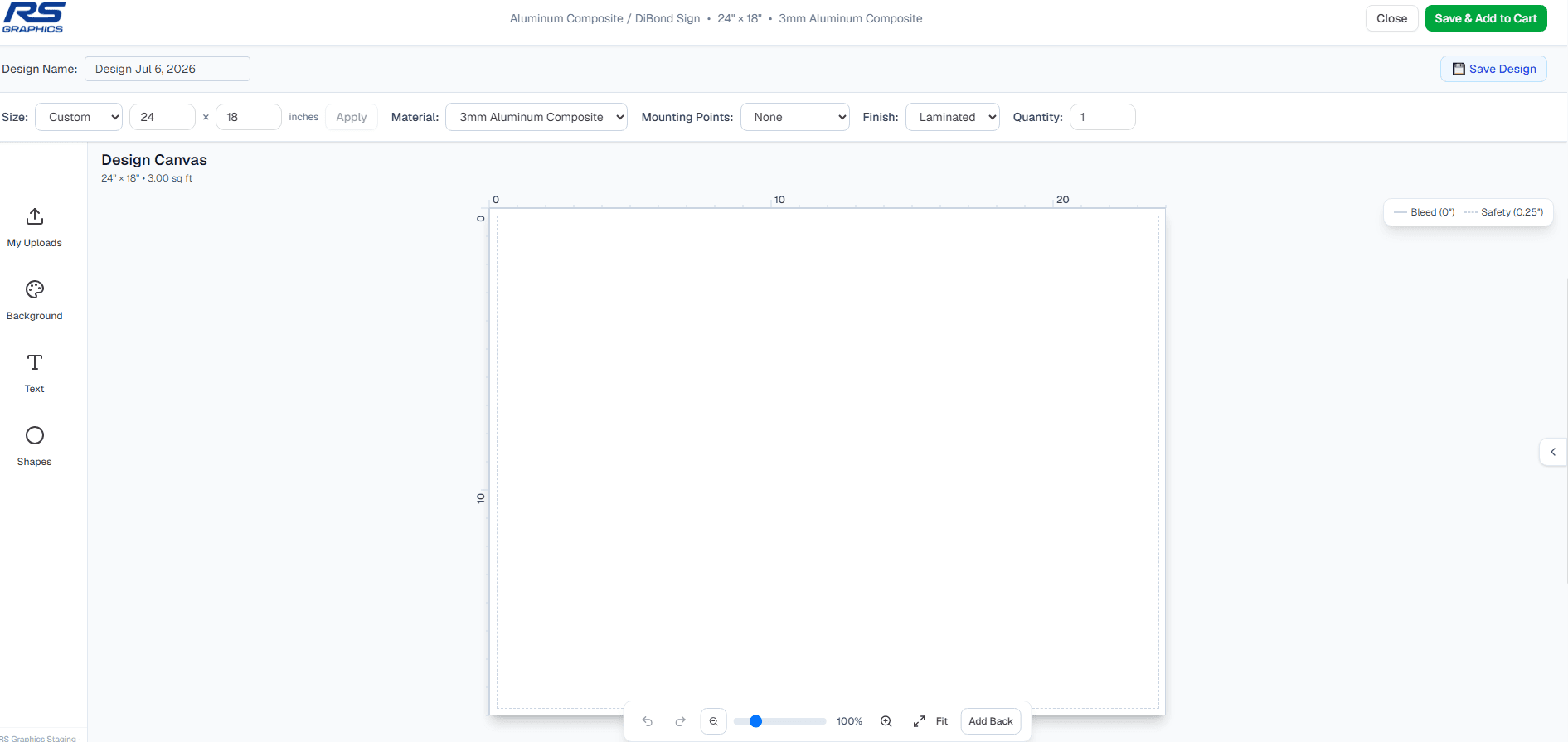
Upload artwork (including PDF pages)
Add PNG, JPG, SVG, or PDF files. For PDFs, select the page you want to place on the canvas.
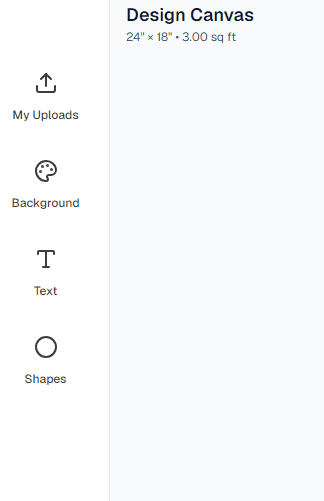
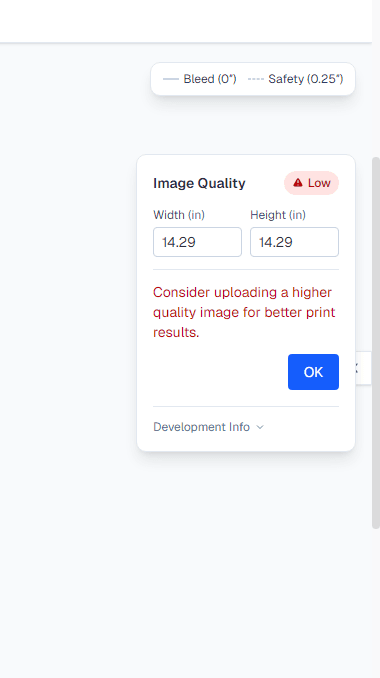
Prefer 300 DPI rasters at final print size; vectors stay sharp at any scale.
Arrange objects and layers
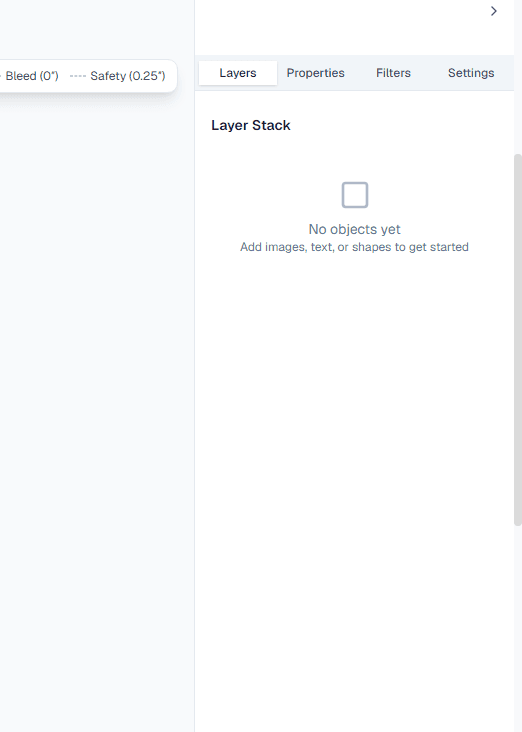
Select items to move, resize, rotate, or reorder layers. Use the sidebar for finer controls. The toolbar also supports text and shapes.
Check DPI and quality warnings
Review DPI, bleed, and safe-area warnings so your file prints as expected.
Save or add to cart
Save to My designs (signed-in) or add the configured item to your cart to continue shopping.

Ordering custom apparel
Configure color and size, choose blank or decorated, set up DTF or embroidery, and add artwork before checkout.
Ordering custom apparel
Configure color and size, choose blank or decorated, set up DTF or embroidery, and add artwork before checkout.
Pick color and size
Select your garment variant from the option dropdowns (for example Color and Size). Apparel uses fixed variant pricing, not square-foot dimensions.

Choose Order blank or Customize
In the Decoration section, pick Order blank for an undecorated garment, or Customize to add DTF, embroidery, or other decoration offered on that product.

More detail: Blank vs. decorated apparel (FAQ)
Set method, size tier, and placement
For each location, choose DTF or embroidery when both are available, select a print or stitch size tier, and pick where the artwork appears (for example left chest or full back). Add multiple placements if needed.
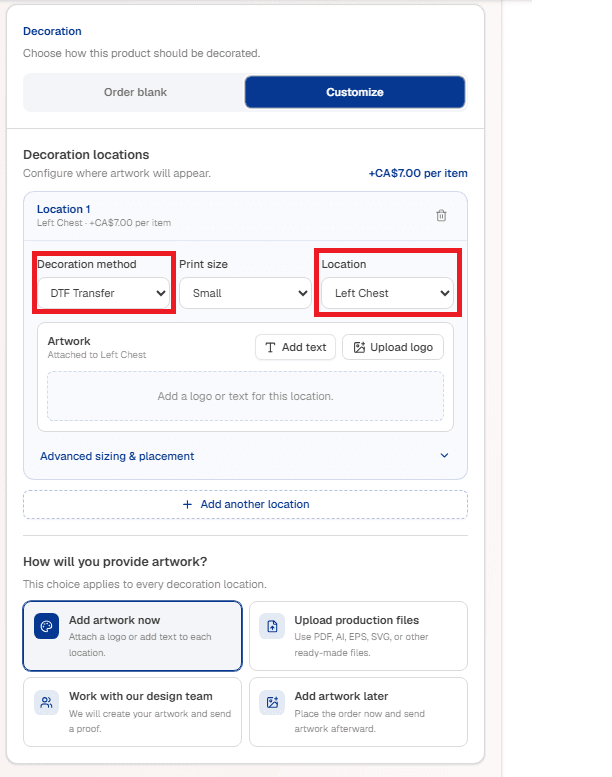
Not sure which method to use? See DTF vs. embroidery (FAQ).
Choose artwork method and add art
Choose how to supply your design: add a logo or text inline, upload production files, design online, work with our design team, or add artwork later. Complete artwork for each placement before adding to cart.
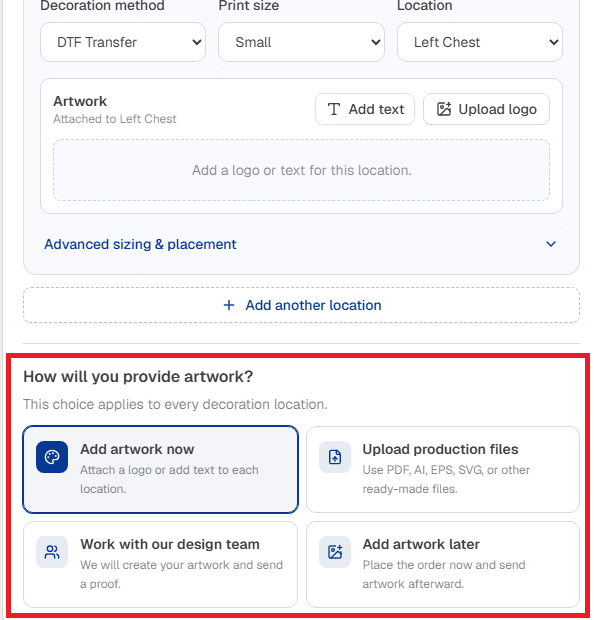
Decorated orders usually include a proof by email before production. See Artwork & proof (FAQ).
Review pricing and add to cart
Confirm the live price breakdown (garment base plus decoration per placement), set quantity, then add to cart and proceed to checkout when ready.

Frequently Asked Questions
Find answers about RS Graphics. Browse guides above or search below — still stuck? Contact us.